
If your freelance business lives in a mix of Google Docs, sticky notes, random spreadsheets, and that one notebook you keep losing, this post is for you.
I’m going to walk through how to set up a single Notion workspace that handles your clients, projects, invoices, and content calendar. All in one place. No more tabbing between six apps to find a client’s email.
The problem with how most freelancers organize
You start with good intentions. A spreadsheet for tracking income. A Google Doc for each client. A Trello board for projects. Maybe a Calendly link for booking calls.
Six months in, the spreadsheet hasn’t been updated since March. The Google Docs are in three different folders. The Trello board has columns called “Maybe” and “Someday” that you haven’t looked at in weeks.
The issue isn’t discipline. It’s friction. Every time you have to switch between tools to do one task, you lose momentum. And eventually you just stop doing the admin work altogether.
What your Notion workspace needs
Four things. That’s it. A client database, a project tracker, an invoice log, and a content calendar. Everything else is a nice-to-have.
1. Client database
One table with every client you’ve ever worked with. Columns: name, email, status (active, past, lead), project type, total revenue, and notes. This is your CRM. When someone emails you out of the blue, you open this table and in two seconds you know who they are, what you did for them, and what they paid.
The key is keeping it dead simple. Don’t add 20 columns you’ll never fill out. Name, email, status, notes. Start there. Add columns later if you actually need them.
2. Project tracker
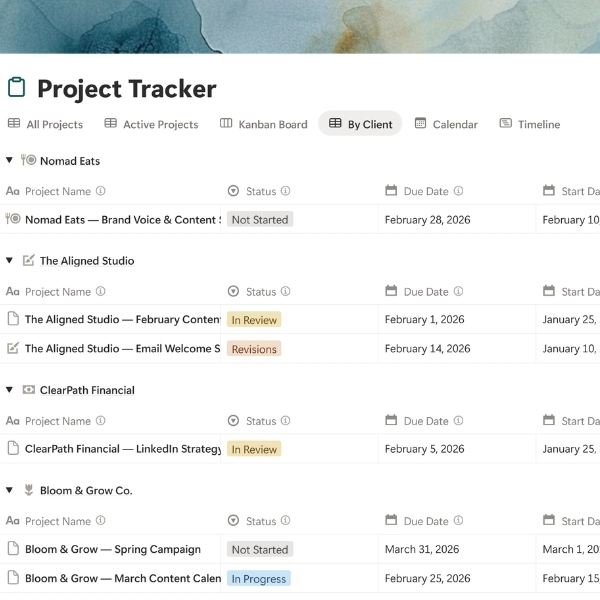
A board view works best here. Columns: Not Started, In Progress, In Review, Done. Each card is a project with a due date, the client it’s linked to (from your client database), and a checklist of deliverables.
The trick that makes this actually useful: link every project to the client database. So when you click on a client, you see every project you’ve ever done for them. That context is gold when they come back six months later wanting more work.
3. Invoice log
A simple table. Columns: invoice number, client, amount, date sent, date paid, status (sent, paid, overdue). Sort by status so overdue invoices float to the top.
This replaces the spreadsheet you stopped updating. The difference is that it lives next to your client database and your project tracker, so you see everything in context. No more wondering “Did I ever invoice Sarah for that logo project?”
4. Content calendar
If you create any content for your business – social posts, blog articles, email newsletters – put it here. A calendar view with columns for platform, status (idea, drafted, scheduled, published), and the actual content.
I keep mine simple. Monday is LinkedIn. Wednesday is email. Friday is Instagram. The content calendar isn’t about being creative – it’s about removing the “what should I post today?” decision so you can just write.
Why one workspace beats five tools
When everything lives in Notion, the admin overhead drops to almost zero. You open one app. You see your clients, your projects, your invoices, and your content plan. You don’t lose context switching between tabs. You don’t forget to update something because it’s buried in a different tool.
I built all of this into the Freelancer Command Center template so you don’t have to start from scratch. It’s a Notion template you duplicate into your workspace, and it has all four sections pre-built with the views and automations already set up. Takes about 15 minutes to customize to your business.
